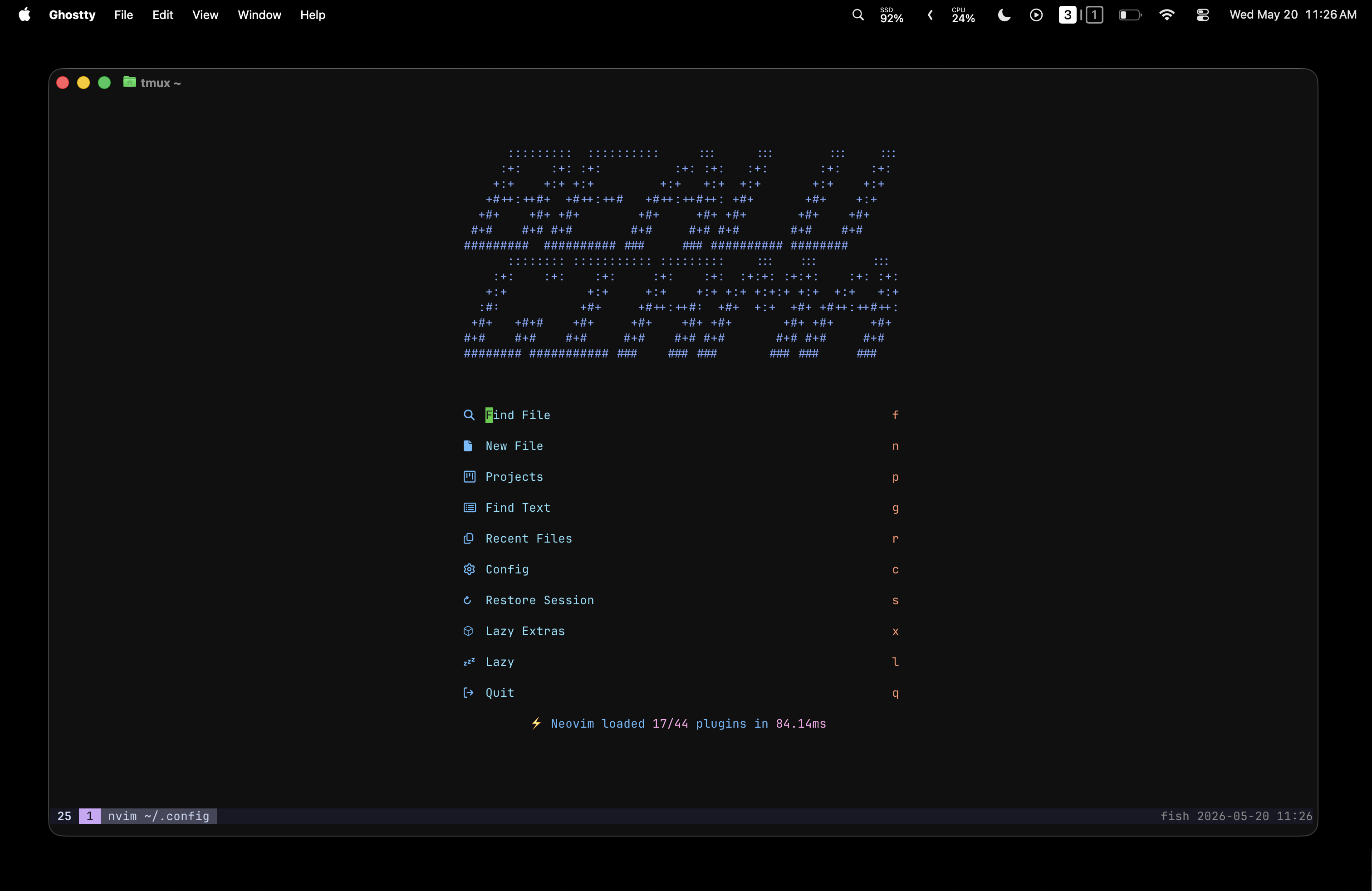
My Developer Workflow Using Neovim & Ghostty
I've tried a lot of development setups over the years. Most of them were resource-heavy, hard to customize, and worst of all — they expected me to reach for a mouse. That's a dealbreaker for me. I want to live in the keyboard as much as possible (the one exception being Figma, because, well, you kind of have to). I'm also a heavy terminal guy — I even once tried listening to music from the terminal... okay, I'm trolling. But after a lot of trial and error, I landed on a workflow that genuinely works for me. For context, I work heavily in TypeScript and Dart.
Here's what my setup looks like.
Persistent Terminal Sessions with tmux
tmux is a terminal multiplexer that lets you run multiple persistent terminal sessions and return to them without losing any running processes. Close your laptop, open it back up, and your workspace is exactly where you left it — running processes and all. It also lets you manage multiple windows and panes within a session, which makes context-switching between tasks much smoother. And with TPM (tmux Plugin Manager), extending it becomes just as easy.
Tmuxinator
Tmuxinator sits on top of tmux and lets you define and restore full project sessions from a simple config file. Instead of manually opening windows and panes every time I start working, I just run a single command and my entire environment comes back up — editor, terminal splits, server — all of it.
tmuxinator start project
One line. That's it.
Editor — Neovim
I used VSCode from the very first day I started learning to code. It's a great editor, but eventually I made the jump to Neovim — and I haven't looked back.
Neovim is a modern reimagining of Vim, and it's become my favorite editor for two main reasons: speed and customizability. Every bit of configuration is written in Lua, which is a small, readable language that's easy to pick up even if you've never used it. More importantly, Neovim keeps my hands on the keyboard — no mouse, no toolbar. The customizability goes really deep too: I can strip out anything I don't want, add what I do, and wire up exactly the LSPs I need. If you don't want to start from scratch, there are already well-configured distros like LazyVim or AstroNvim that get you productive out of the box.
VSCode does have Vim motions, but it's not nearly as smooth as actual Neovim. It's a different experience entirely.
One thing worth mentioning for mobile developers: debugging tooling in Neovim can be a bit of a challenge. That said, I use Flutter and flutter-tools.nvim works really well for me. If you're on Swift or Android/Java, you might have a harder time — worth researching before you fully commit to the switch.
Shell — Fish
Since my last workflow post (where I was on zsh), I've switched to fish. It's a modern shell that comes with autosuggestions, syntax highlighting, and a lot of quality-of-life features out of the box — no plugins required. What really sold me is its web-based configuration UI, which makes customizing your shell and previewing changes surprisingly easy.
CLI Tools
These are the tools that make the terminal feel fast and modern:
exa — A replacement for ls with icons, colors, and git status integration. It makes browsing a directory feel a lot more informative at a glance. I use the same aliases I've had for a while.
zoxide — A smarter cd. It tracks your most-visited directories and lets you jump to them with just a few characters. Once you use it, plain cd feels painfully slow.
fzf — Fuzzy finder for everything: files, shell history, running processes. Plug it into almost anything and it instantly gets more useful.
ripgrep — Blazing-fast search across an entire codebase. I use it constantly when I need to find where something is defined or referenced.
fd — A modern, faster alternative to find. Simpler syntax, respects .gitignore by default.
GitHub CLI (gh) — This has become essential. I use it for creating repos, cloning, managing PRs, and a bunch of other GitHub tasks without ever leaving the terminal. If you're not using it, brew install gh and thank me later.
AI Tools
AI has become a real part of my day-to-day coding. Here's what I reach for:
Opencode CLI — My go-to. It integrates well with a terminal-first workflow and handles most of what I throw at it.
Codex CLI — OpenAI's terminal coding assistant. Useful for quick generation and iteration directly from the command line.
Kiro CLI — A newer one I've been exploring. Still getting a feel for it, but promising so far.
Gemini / Antigravity CLI — I use this occasionally, mostly to cross-check things or get a second opinion from a different model.
That's the full stack. It's lean, keyboard-driven, and — most importantly — it stays out of my way. If you're curious about any of these or want the dotfiles, I'm happy to share.